Website backup guide
Creating a Backup Plan for Your Website
Backups are not the exciting part of running a website, which is probably why they get delayed until the day everyone is suddenly very interested in them. A solid plan gives you a calmer path when something breaks, disappears, or needs to be rolled back.
If you want the plain version of how this site approaches practical guides, the About page explains the general approach.
Why backing up matters
A backup is a saved copy of your website files and database. If your site is hacked, an update breaks a page, or someone deletes the wrong thing, that copy is what helps you get back to a known good version.
WordPress recommends keeping regular backups before major changes, and the backup rule of thumb from WordPress developer documentation is simple: do not wait until you are already troubleshooting.
- Accidental deletion: a page, image, or plugin setting gets removed by mistake.
- Update problems: a theme or plugin update changes the layout or causes an error.
- Security incidents: malware, spam injection, or unauthorized access needs a clean rollback point.
- Hosting issues: server failures or account problems make the live copy unavailable.
Key terms in plain language
- Backup
- A saved copy of your website that you can use later.
- Restore
- Putting that saved copy back online.
- Off-site
- Stored somewhere other than your live hosting account, such as cloud storage.
- Incremental backup
- A backup that saves only what changed since the last copy, instead of everything every time.
- Restore point
- A dated snapshot you can roll back to if the current site version goes wrong.
Which backup method should you use?
There is no single “best” method for everyone. The right answer depends on how often your site changes and how quickly you need recovery to happen. The backup strategy often recommended in general storage planning is the 3-2-1 backup rule: keep multiple copies, store them in more than one place, and make sure one copy is off-site.
| Method | What it means | Main benefit | Main tradeoff |
|---|---|---|---|
| Manual backup | You download files and export the database yourself. | Full control over what gets saved. | Easy to forget and slower to repeat. |
| Automated plugin backup | A plugin schedules backups for you. | Less effort once it is set up. | Depends on the plugin being configured correctly. |
| Cloud backup | Copies are sent to remote storage like cloud drives. | Safer if your host has a problem. | Usually adds another service to manage. |
| Local backup | Copies are stored on your computer or external drive. | Fast access when you need a file quickly. | Not ideal as your only copy. |
How to build a backup plan step by step
- List what must be backed up. For a WordPress site, that usually means the database, themes, plugins, uploads, and any custom files.
- Decide how often the site changes. A small brochure site may need weekly backups, while an active blog or store may need daily or even hourly copies.
- Choose where copies will live. Keep one copy on the server only if you also send a second copy to cloud storage or another off-site place.
- Set a test restore date. A backup is only useful if it can actually be restored. Pick a simple date to test one.
- Write the process down. If the person who knows the steps is unavailable, the site still needs a path back online.
A practical backup plan for a small site might look like this: daily automated backups to cloud storage, weekly downloaded copies saved locally, and one monthly test restore. That is not fancy, but it is the kind of boring that tends to save weekends.
Backup scenarios worth planning for
Good plans are built for real messes, not perfect conditions. Here are a few common scenarios to think through ahead of time:
- A plugin update breaks the homepage. You need to restore the site before visitors see the error.
- An editor deletes the wrong post or image. You want a copy that is recent enough to avoid rework.
- The site gets hacked. You need a clean backup taken before the problem started.
- The hosting account has a problem. You should still have a separate copy that is not trapped in the same place.
Tools that can help
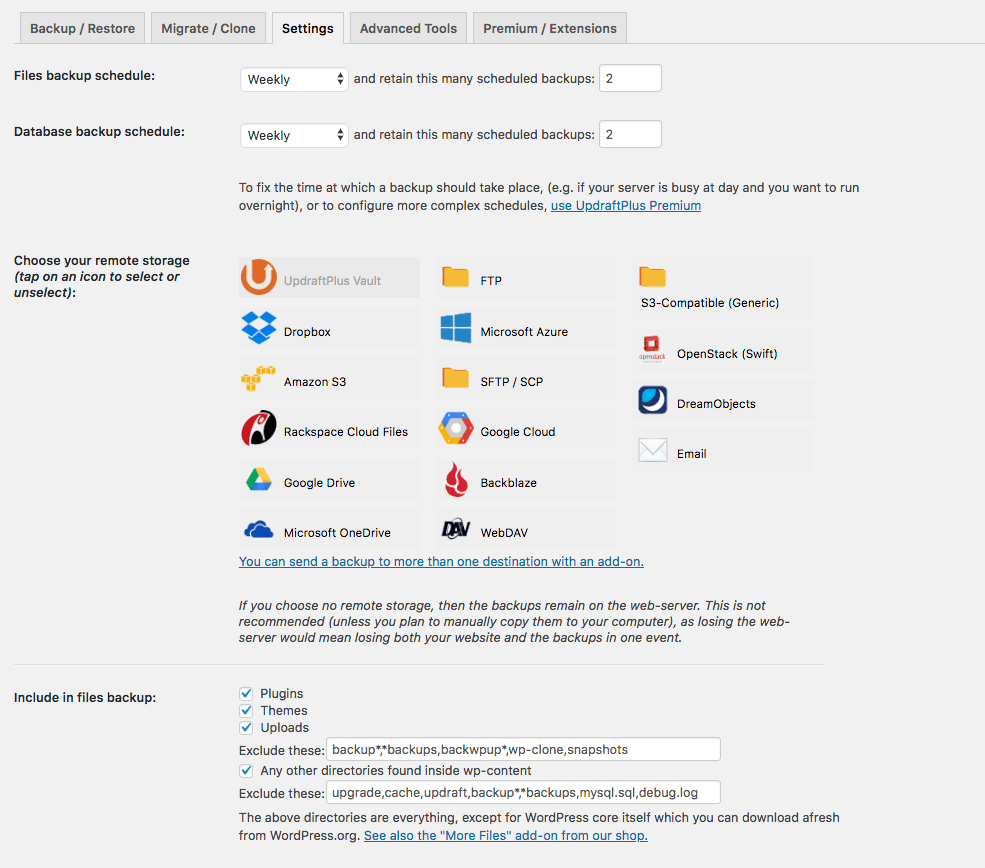
For WordPress sites, backup tools range from simple to very hands-off. The best choice is the one you will actually leave enabled. A few reliable starting points are UpdraftPlus for scheduled backups, the WordPress.org guidance on backing up before updates, and general backup planning advice from the WordPress developer handbook.
- UpdraftPlus: useful for scheduled backups and off-site storage options.
- Host-level backups: convenient when your hosting company includes daily snapshots.
- Cloud storage: helpful for keeping a second copy outside the hosting account.
- Local exports: good for extra peace of mind and quick file access.
What a simple backup routine can look like
If you want a starting point, try this:
- Back up the database and uploads every day.
- Keep at least seven recent copies.
- Store one copy off-site.
- Test one restore each month.
- Update the plan whenever the site changes in a major way.
That routine covers the basic idea without turning your week into a backup management hobby.
Start with one small step
Do not wait for a perfect system. Start with one recent backup, one off-site copy, and one written note that explains how to restore it. Once that exists, the rest of the plan gets easier to improve.
If your website matters to you, treat backups like a seatbelt: not glamorous, but very useful the moment you need them.