Accessibility is not a “nice to have” in restoration—it’s how a recovered website stays usable for everyone.
If you’re restoring a site (or rebuilding one after downtime), you probably ask:
- What does “web accessibility” actually mean?
- Are there legal requirements I should follow?
- What best practices prevent common accessibility failures during restoration?
- Which tools can I use to test fixes before launch?
That question matters because accessibility barriers can block users from reading content, completing forms, and navigating pages—regardless of device, connection speed, or assistive technology. The Web Content Accessibility Guidelines (WCAG) explain the shared standard many organizations use, while the W3C WAI overview clarifies how accessibility is evaluated in practice.
In this guide, we’ll map accessibility to restoration work: definition, legal considerations, practical design and build habits, and a testing workflow you can repeat.
Table of contents
- Define web accessibility
- Legal requirements for accessibility
- Best practices for accessible design
- Tools for testing accessibility
Define web accessibility
Web accessibility means designing and building websites so people with disabilities can perceive, understand, navigate, and interact with the web. In practical terms, that includes supporting screen readers, keyboard-only navigation, adequate color contrast, captions for media, and accessible forms.
When a website is restored, content can be re-uploaded, themes can change, and plugins can be swapped. Any of those changes can introduce barriers—especially when restored pages are assembled quickly. Treat accessibility like a baseline requirement for every restoration step, not a late-stage polish.
Accessibility is measured against criteria
Most teams use WCAG as a reference point. WCAG organizes accessibility into principles and success criteria. A simple way to think about it:
- Perceivable: users must be able to perceive information (e.g., not relying only on color).
- Operable: users must be able to operate controls (e.g., keyboard access).
- Understandable: the interface should behave predictably (e.g., clear labels).
- Robust: content should work reliably with assistive technologies.
Legal requirements for accessibility
Accessibility laws and standards vary by country, and requirements depend on the type of organization and the audience. Many regulations reference WCAG directly or indirectly. Because this area is jurisdiction-specific, the safest approach during restoration is:
- Identify your jurisdiction and obligations (public sector, education, private organizations, etc.).
- Adopt WCAG-aligned requirements as your internal baseline (often aiming for WCAG 2.1/2.2 depending on policy).
- Document your process: what was tested, when, and what remediation work was completed.
For official framing, consult resources like the W3C WAI policies database and the U.S. Department of Justice ADA guidance (if relevant to your audience). Always use these as guidance—not as substitute legal advice.
Best practices for accessible design
Accessibility during restoration is mostly risk management. The highest-impact failures are often straightforward to prevent once you build the right habits into your content and layout workflow.
1) Use semantic HTML for structure
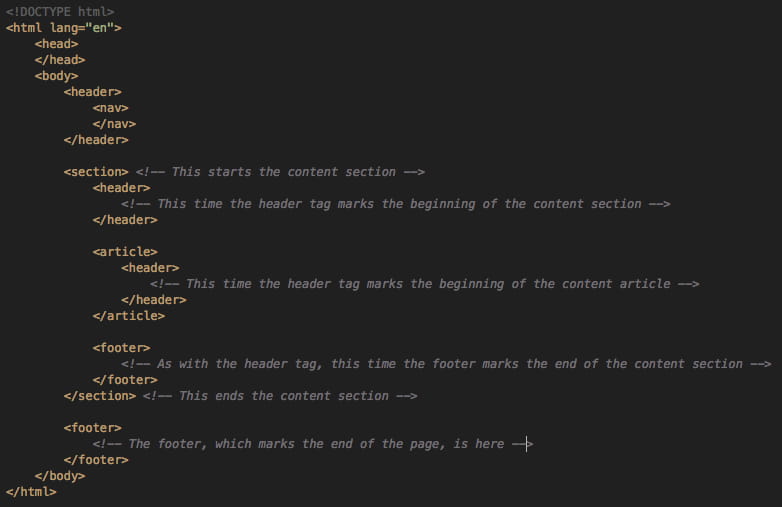
Headings, landmarks, lists, and button types are the “bones” of accessibility. Screen reader users navigate by structure. During restoration, avoid rebuilding pages as generic div soup. Ensure headings follow a logical order and interactive elements use appropriate tags.
2) Label forms clearly
Forms are where accessibility breaks most often: missing labels, placeholder-only text, and error messages that are not announced. For every input:
- Provide a visible label or an accessible label.
- Use clear instructions near the field.
- When errors occur, identify the field and describe how to fix it.
3) Guarantee keyboard and focus support
Users who can’t use a mouse rely on keyboard navigation. Make sure:
- Interactive elements are reachable and logically ordered.
- Focus indicators are visible (don’t remove outlines without replacement styles).
- Modals and dropdowns trap focus appropriately and close predictably.
4) Don’t rely on color alone
Restoration often brings over old styling or introduces new theme styles. If information is conveyed only through color (e.g., “required fields are red”), add additional signals such as text, icons with labels, or patterns.
5) Make media accessible
Images should have meaningful alternative text (not “image123”). For audio/video content, captions and transcripts ensure the information is available to users who can’t hear it.
6) Plan restoration around accessibility regression
Accessibility regressions happen when something works once and then breaks after theme/plugin updates. Build a lightweight regression checklist:
- Keyboard test on key templates (home, navigation menus, forms).
- Screen reader spot-check for headings and form interactions.
- Contrast checks for primary text and button labels.
- Re-test any page that was rebuilt from scratch.
Tools for testing accessibility
Testing should be layered. Automated tools find many issues quickly, but they don’t catch everything—especially context-dependent problems like confusing form instructions. Combine tools with manual checks.
Automated checks (fast feedback)
- Browser-based audits: tools built into developer workflows can flag missing alt text, poor contrast, and some semantic issues.
- Lighthouse / page audits: can highlight accessibility areas alongside performance and best practices.
- Automated crawlers (for larger sites): help identify patterns across templates.
When using automated tools, treat results as a starting list. Prioritize anything that blocks interaction or content comprehension.
Manual testing (the “last mile”)
- Keyboard-only navigation: verify every interactive element is usable and focus is visible.
- Screen reader checks: confirm headings, landmarks, and form fields are announced correctly.
- Zoom and reflow: ensure layouts work at higher zoom levels and on small screens.
A simple accessibility test workflow for restoration
| Step | What to do | Exit criteria |
|---|---|---|
| 1. Baseline | Run automated audits on key templates | Critical/blocking findings are addressed |
| 2. Remediate | Fix headings, labels, focus order, contrast, media | Fixes are validated in the browser |
| 3. Validate | Keyboard + screen reader spot-check | Users can complete tasks without getting stuck |
| 4. Regression | Re-check after theme/plugin changes | No new high-impact issues introduced |
Where to start (and what to document)
If you’re mid-restoration, the most effective next step is to pick one page template (for example, your contact form or a core landing page) and make it accessible end-to-end. Then scale that approach across templates.
Document what you test and what you fix. That documentation becomes your restoration “recovery path” for future changes.
If the restoration project involves software changes (plugins, custom UI components, integrations), a structured approach to connecting testing into the workflow can help. One resource that discusses practical AI workflow integration is AI Integration Services | Integrate AI Into Business Workflows.
Conclusion
Accessibility is significant in website restoration because it preserves usability through change. By defining accessibility clearly, aligning with WCAG-based success criteria, and applying repeatable design and testing practices, you reduce the odds of leaving barriers in place.
Key takeaways:
- Accessibility means more than compliance—it’s real usability for people using assistive technologies.
- Legal expectations vary, but WCAG-aligned baselines and documentation are common safe practices.
- Semantic HTML, labeled forms, keyboard/focus support, contrast, and accessible media prevent most failures.
- Use automated tools for speed, then validate with manual keyboard/screen reader checks.
If you’re about to publish restored pages, run the workflow checklist above and confirm you can complete the key tasks without a mouse.